




















































Have you accidentally replaced an important file on your Mac? If you are trying to recover an overwritten file, you may think your original document is gone forever. Whether you have replaced a Word file, Excel spreadsheet, photo, or another important document, do not lose hope just yet. Depending on how the file was overwritten, there may still be ways to get the original version back.
The key is to act quickly and avoid making further changes that could reduce your recovery chances. In this guide, you’ll learn why files get overwritten, the best recovery methods using Tenorshare 4DDiG, and how to protect your important files from similar mistakes in the future.


Let’s get started.
Part 1: What Overwritten Files Mean on Mac
An overwritten file on a Mac is a file that has been replaced by a newer version using the same storage space. Unlike deleted files, overwritten files are not moved to the Trash. Instead, the original data is partially or completely replaced by new data.
This usually happens when you save a file with the same name, replace an existing document during a copy or move operation, or accidentally overwrite a file on an external drive. The more you continue using your Mac after the overwrite, the lower the chances of recovery because new data may continue replacing the original content.
The good news is that Mac file recovery after overwrite may still be possible in some situations, especially if you act quickly and use the right recovery method.
Part 2: Common Scenarios of File Overwriting
Files can be overwritten in several everyday situations, often without you realizing it until it’s too late. Here are the most common scenarios.
1. Saving New Versions Over Original Documents
Saving changes to the same file instead of creating a new copy can overwrite the original version, making it difficult to recover previous content.
2. Replacing Files with the Same Name on External Drives
When copying files to an external drive, macOS may ask whether you want to replace an existing file. Choosing Replace can overwrite the original file stored on the drive.
3. Auto-Save Overwriting Previous Project Versions
Many applications automatically save your work while you edit. If version history isn’t available, these auto-saves may replace the previous version of your project.
4. Editing Errors in Word, Excel, or Creative Files
Accidentally saving unwanted changes in documents, spreadsheets, or design projects can overwrite the original content. This is a common reason users search for recover overwritten Word Excel files Mac solutions.
5. Sync or Transfer Operations Replacing Older Data
Cloud syncing or transferring files between devices can sometimes replace older files with newer versions, especially if there are file name conflicts or sync errors.
Part 3: Immediate Action – Stop Data Overwrite
If you accidentally overwrite an important file, act as quickly as possible. The more you use the affected drive, the lower your chances of recovery.
- Stop using the affected drive immediately. Continued use can overwrite more of the original data, making recovery much more difficult.
- Avoid saving new files or making additional edits. Every new file written to the drive may replace recoverable data.
- Don’t install recovery software on the same drive. Install it on a different drive or partition to avoid writing new data to the affected storage.
- Prevent further data from being written. If the overwritten file is on an external drive, safely disconnect it until you’re ready to begin the recovery process.
Taking these simple steps can significantly improve the chances of Mac file recovery after overwrite.
Part 4: How to Recover Overwritten Files on Mac (Main Solutions)
If you’ve accidentally replaced an important file, stop using the affected drive as soon as possible. Saving new data can overwrite the remaining recoverable content and reduce your chances of success. Start with macOS’s built-in recovery options before trying professional recovery software.
Fix 1: Check Time Machine Backup
If you have Time Machine enabled, restoring an earlier version of your file is often the easiest solution.
Follow these steps:
- Open Time Machine from the menu bar or Applications folder.
- Go to the folder where the original file was stored.
- Use the timeline on the right to browse previous backups.
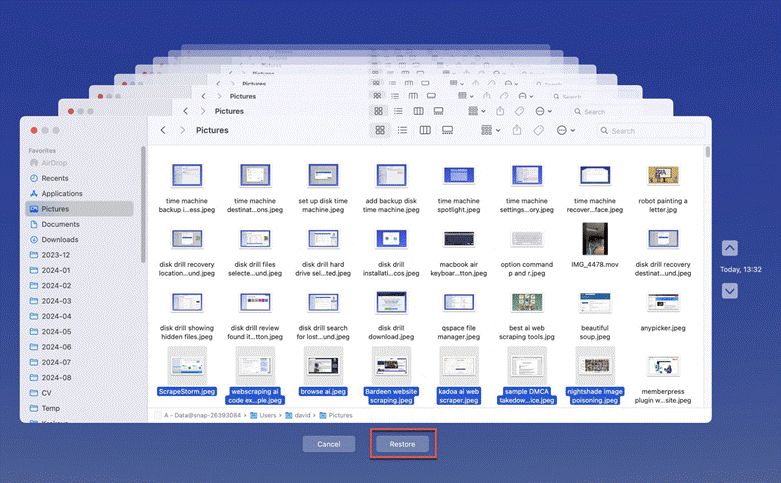
- Select the version you want and click Restore.
Time Machine can recover older versions of documents as long as a backup was created before the file was overwritten.
Fix 2: Use Application Version History
Many Mac applications, including Microsoft Word, Excel, and Apple’s built-in apps, automatically save previous versions of files.
Here’s how:
- Open the affected file.
- Click File > Browse Version History or File > Revert To > Browse All Versions (if available).
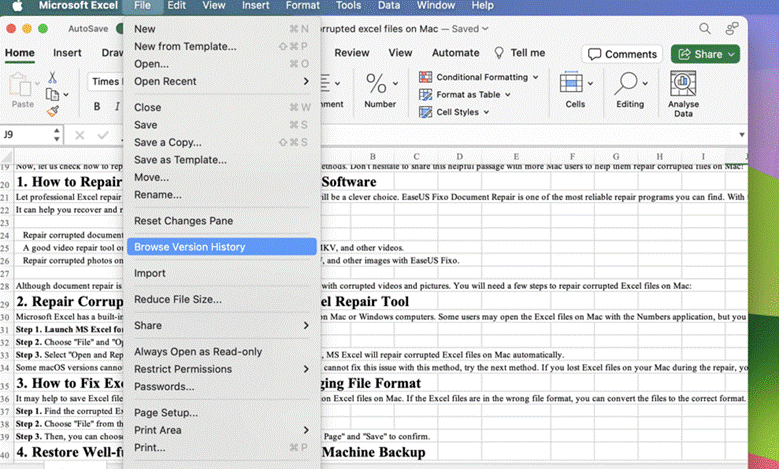
- Review the available versions.
- Restore the version you want.
This method is especially useful if you need to recover overwritten Word Excel files Mac without restoring an entire backup.
Fix 3: 4DDiG Data Recovery for Mac (Recommended Professional Solution)
If no backup or version history is available, 4DDiG Data Recovery for Mac is a professional solution that can help with Mac file recovery after overwrite. It scans your storage device for recoverable file data and supports recovery from internal drives, SSDs, USB drives, SD cards, and external storage devices. The software also lets you preview files before recovering them.
How to recover overwritten files:
Step 1: Download and install 4DDiG Mac Data Recovery.
Step 2: Launch the program and select the drive where the overwritten file was stored.
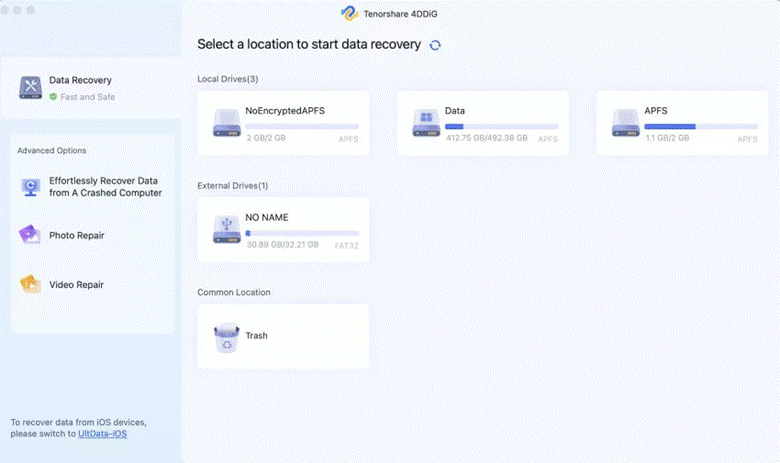
Step 3: Run a Quick Scan first, then use Deep Scan to search for additional recoverable files.
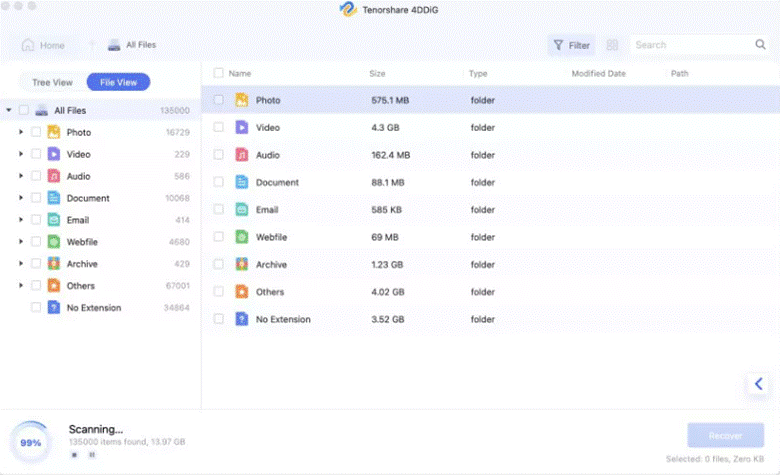
Step 4: Preview the scan results to find the file you want to recover.
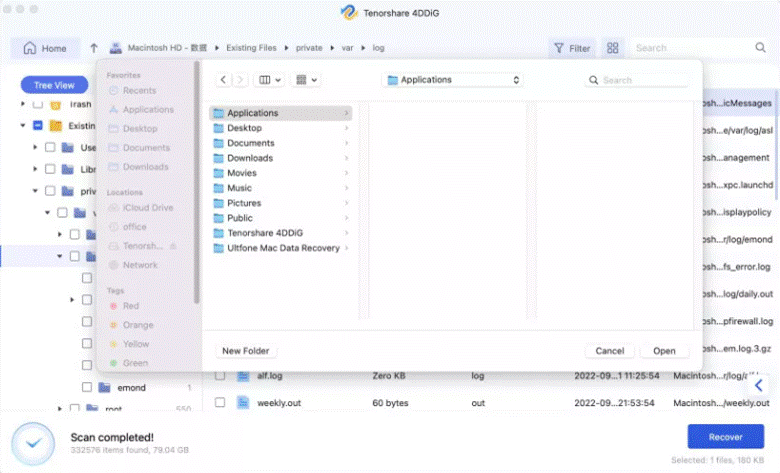
Step 5: Select the file and click Recover, then save it to a different drive to avoid overwriting any remaining recoverable data.
Fix 4: Advanced Recovery via External Drive Scan
If the overwritten file is stored on an external hard drive, SSD, or USB drive, you can improve your recovery chances by scanning the device from another Mac. This helps avoid unnecessary write operations on the affected drive.
Follow these steps:
Step 1: Safely disconnect the affected external drive from your Mac.
Step 2: Connect the drive to another Mac using a compatible USB cable or adapter.
Step 3: Launch 4DDiG Mac Data Recovery and select the external drive from the list of available devices.
Step 4: Run a Quick Scan, followed by a Deep Scan to search for overwritten or lost file fragments.
Step 5: Preview the recoverable files, select the versions you want to restore, and save them to a different storage location instead of the affected drive.
This method is especially useful when you need to restore replaced files on Mac external drive while minimizing the risk of further data overwriting.
Part 5: When Overwritten Data Cannot Be Fully Recovered
Although recovery is sometimes possible, there are situations where overwritten files cannot be restored completely.
1. Multiple Overwrite Cycles on the Same Storage Block
If new data has been written over the same storage area several times, the original file may be permanently replaced, making recovery extremely difficult.
2. SSD TRIM Permanently Clearing Old Data
Most modern Macs use SSDs with TRIM enabled. After a file is overwritten or deleted, TRIM can permanently erase the old data, leaving little or nothing to recover.
3. Extended Usage After the Overwrite
Continuing to use your Mac after overwriting a file increases the chance of new data replacing the remaining recoverable file fragments.
4. Corrupted File System Structure
If the file system becomes corrupted after the overwrite, important file information may be damaged, making it much harder for recovery software to locate and restore the original data.
Part 6: How to Prevent File Overwriting on Mac
A few simple habits can help you avoid accidentally replacing important files in the future.
1. Enable Time Machine Backups
Turn on Time Machine to automatically back up your Mac. This makes it easy to restore older versions of files whenever needed.
2. Use “Save As” Instead of Overwrite
When editing important documents, save them with a new name instead of replacing the original. This keeps the previous version available if you make a mistake.
3. Maintain Multiple File Versions
Keep different versions of important projects, such as Project_v1, Project_v2, and Final, so you can easily return to an earlier copy if necessary.
4. Avoid Direct Editing of Original Files
Before making major changes, create a duplicate of the original file. This gives you a safe backup if something goes wrong during editing.
5. Store Backups on External or Cloud Storage
Keep copies of important files on an external drive or a trusted cloud storage service. Having multiple backups provides extra protection against accidental overwriting and other types of data loss.
Final Words
Accidentally overwriting an important file on your Mac can be stressful, but it doesn’t always mean the file is lost forever. The sooner you stop using the affected drive and try the right recovery methods, the better your chances of getting your data back. Start by checking Time Machine or your application’s version history, and if those options aren’t available, use professional too to recover overwritten files Mac.
4DDiG Data Recovery for Mac is a reliable solution that can help recover overwritten documents, photos, videos, and other important files from your Mac or external storage devices.