

















































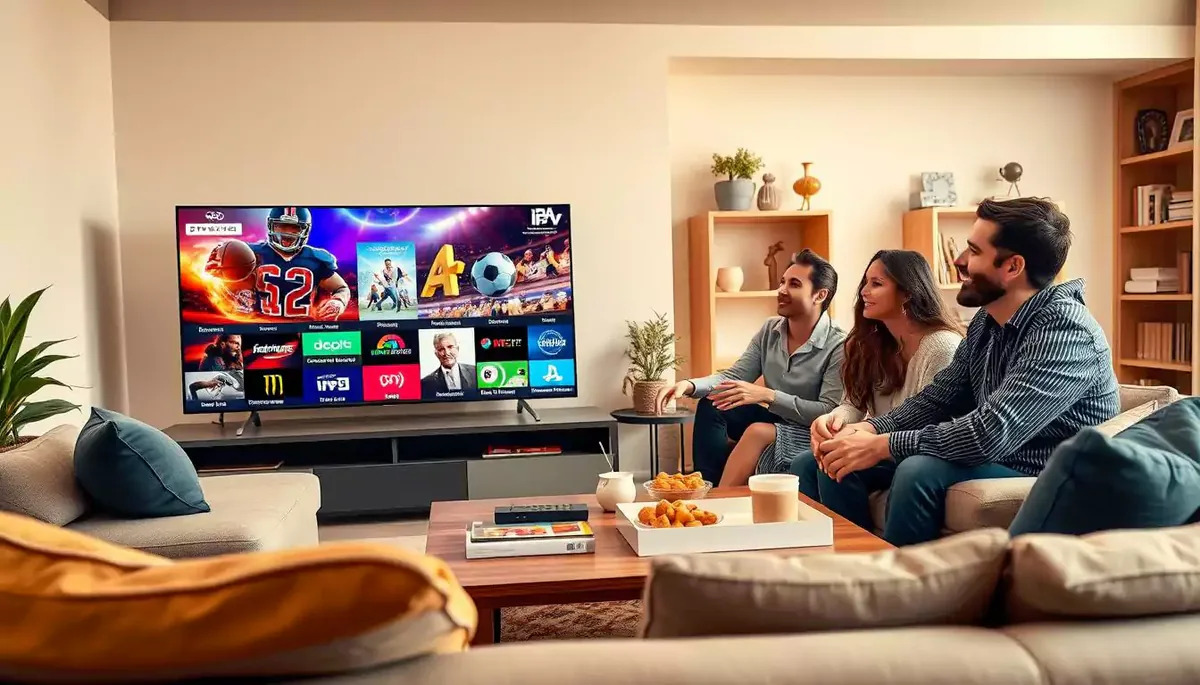
Firestick and Android TV boxes have become the two most common ways UK households stream IPTV, and it is easy to see why. Both are affordable, widely available, and simple enough for anyone to set up in an evening. But choosing the right device, and the right IPTV service to go with it, makes a real difference to picture quality, reliability, and how much hassle you deal with day to day. Here is what to know before you buy, and how to get the best results once you do.
Firestick vs Android TV Box: What Is the Difference


Amazon Fire TV Stick plugs directly into an HDMI port on your television and runs Amazon’s Fire OS, a modified version of Android. It is compact, inexpensive, and works well for most IPTV apps, though Amazon does place some restrictions on installing apps from outside its own app store.
Android TV Box is a small standalone device that runs a fuller version of Android, generally with more storage, more processing power, and fewer restrictions on the apps you can install. Android boxes tend to cost a little more than a Firestick but offer noticeably smoother performance, especially with demanding apps or when running several streaming services side by side.
For casual viewers who mainly want one or two IPTV apps alongside Netflix and Prime Video, a Firestick is usually enough. For anyone planning to use IPTV as their main source of television, particularly for live sport, an Android box is generally the better long term investment.
What to Look for in an IPTV Service
Once you have your device sorted, the service itself matters just as much. A handful of factors separate a good IPTV subscription from a frustrating one:
Channel stability. Streams that constantly buffer or drop out defeat the purpose of switching to IPTV in the first place. Look for a provider that is upfront about server capacity and uptime.
EPG (Electronic Programme Guide) support. A proper programme guide lets you browse what is on the way you would with a normal TV listing, rather than scrolling blindly through a channel list.
Device compatibility. Confirm the service has a dedicated app, or at least a reliable player recommendation, for your specific device before subscribing.
Trial periods. A provider confident in their service will usually offer a short free trial or a low cost test period so you can check picture quality and reliability before committing to a longer subscription.
Clear support channels. Look for a provider with responsive customer support, ideally through WhatsApp, live chat, or email, since setup questions are common in the first few days.
If you are still shortlisting providers, it is worth comparing a few before you commit. best IPTV service UK options can vary a lot in channel stability and support, so check reviews and trial periods carefully.
Step by Step Setup on Firestick
1. Enable apps from unknown sources. Go to Settings, then My Fire TV, then Developer Options, and turn on “Apps from Unknown Sources.” This allows you to install IPTV player apps that are not listed in the official Amazon store.
2. Install a downloader app. Search for “Downloader” in the Fire TV app store and install it. This lets you enter a direct download link for your chosen IPTV player.
3. Download your IPTV player. Your IPTV provider will usually recommend a specific player, such as IPTV Smarters or a similar app, along with a direct download link.
4. Enter your subscription details. Open the installed player and enter the M3U playlist URL or login credentials provided by your subscription.
5. Load the channel list and test playback. Give the app a minute to load the full channel list on first launch, then test a handful of channels across different categories to confirm smooth playback.
Step by Step Setup on an Android TV Box
1. Open the Google Play Store. Most Android boxes come with Play Store access built in, which makes installing apps considerably simpler than on a Firestick.
2. Search for and install your IPTV player. The same apps used on Firestick, such as IPTV Smarters, are typically available directly through the Play Store on an Android box.
3. Sign in with your subscription details. Enter your M3U link or login credentials exactly as provided by your IPTV service.
4. Adjust video settings if needed. Android boxes often have more flexible video output settings than a Firestick, so if you notice picture quality issues, check the resolution and buffering settings within the app itself.
5. Organise your channel list. Many players let you mark favourites or reorder channels, which is worth doing early on so your most watched channels are easy to find later.
Getting the Best Performance
A few habits make a noticeable difference to day to day reliability:
- Use a wired connection where possible. An ethernet adapter for your Firestick or Android box gives a more stable connection than WiFi, particularly during peak evening hours when household WiFi tends to slow down.
- Restart your device regularly. Streaming boxes accumulate cache over time. A weekly restart keeps things running smoothly.
- Keep your player app updated. IPTV player apps release regular updates that fix bugs and improve stability, so check for updates every few weeks.
- Avoid running too many apps at once. Closing background apps before opening your IPTV player frees up memory, which particularly helps older Firestick models.
Common Mistakes to Avoid
Buying the cheapest box available. Extremely low cost, unbranded Android boxes often use outdated hardware that struggles with modern apps and receives no software updates. A recognised brand, even at a slightly higher price, tends to be more reliable in the long run.
Ignoring storage space. Both Firestick and Android boxes can slow down significantly once storage runs low. Periodically clear cache and remove unused apps.
Not checking device compatibility before subscribing. Always confirm your IPTV provider supports your specific device before paying for a subscription, since not every service works smoothly on every player.
Taking the time to check compatibility and reviews upfront saves a lot of hassle later. Providers such as UK IPTV are worth a look when comparing what is on offer for Firestick and Android box users.
Final Thoughts
Whether you go with a Firestick for its simplicity or an Android box for extra power, the setup process for IPTV is quick once you know the steps, and a little care around your device choice and subscription selection goes a long way toward a smooth viewing experience. If you are comparing providers, it is worth spending a bit of time reading reviews and checking channel lists before committing, since quality can vary widely between services.
With the right device and the right provider, IPTV can genuinely replace a traditional TV package, offering more channels, more flexibility, and often a lower monthly cost than what most UK households are used to paying.