





















































Apple’s macOS 27 Golden Gate is here, with new features, a new look, and some major performance boosts on supported Macs. But before you go ahead and click that update button, a fair question arises — should you upgrade now or wait a little longer? Big system updates always bring a little uncertainty, whether that’s beta instability, app compatibility gaps, tight storage space, or the small but real chance of losing files in the process.
This guide will help you make a good decision about upgrading, back up your Mac correctly, and use trustworthy Mac data recovery tools if something goes missing after the upgrade is finished. This practical guide is not a technical manual, but for the average Mac owner who wants to keep their files safe.


Is macOS 27 Available Yet
If your Mac is already running macOS 27, you’re probably using a beta version rather than the completed public release. Apple usually releases developer and public betas months before the official launch, allowing early adopters to try out new features and report bugs before the wider release. That said, beta software is, by definition, unfinished, and it can behave in unpredictable ways that the final release won’t when Apple irons out the kinks.
If you are a regular user, a student, or a small business owner who relies on your Mac daily, it is better to wait for the stable public release rather than try out new features early. Developers, IT professionals, and experienced testers with a spare machine can reasonably install the beta earlier, as Apple’s beta program exists specifically for testing and feedback, not for daily production use. If your work, coursework, or client files are living on your Mac, patience now will save you real headaches later.
Also, note that beta releases may be pulled or delayed if Apple discovers a serious bug during its internal testing. It is always a good habit to review the official release notes before installing anything new.
Should I Upgrade to macOS 27 Now?
Whether it’s the right time for you depends a lot on how you use your Mac day-to-day, not just on how excited you are about new features. Here’s a quick rundown to help you feel a little more confident in your decision.
| User Situation | Recommended Action |
| You rely on your Mac for work or school | Wait for the public release and confirmed app compatibility |
| You use essential professional software. | Check with the developer before updating anything. |
| You have a spare Mac just for testing | Try the beta, but only after a full backup first |
| Your Mac is low on storage or acting unstable | Fix those issues first, then consider updating later |
| You want new features without much risk | Wait for the first stability patch after public launch |
| You manage multiple Macs for a team | Test on one machine before rolling the update out |
There’s no one right answer here, but the pattern is fairly consistent: the more your day-to-day work requires you to rely on your Mac, the more patience tends to pay. Rushing an update rarely saves meaningful time, while a failed one can cost you hours of troubleshooting.
What to Check Before Updating to macOS 27
A little bit of pre-planning can go a long way toward avoiding update headaches down the road. Instead of just skimming past these checks, make sure you run through them carefully before you hit install.
Confirm compatibility first. Not every macOS release will run on every Mac model, and sometimes older hardware is dropped entirely. Open System Settings, go to Software Update, and if macOS 27 appears there, your Mac officially supports the new release.
Review your available storage space. Updates need some breathing room to install properly, and a nearly full drive is still one of the most common reasons for failed or stalled installations. Free up space well in advance, rather than scrambling at the last minute when the installer stalls.
Update your important apps first. Software that hasn’t been updated in a while might not play nice with a brand-new operating system right away. Before proceeding with the upgrade, check with the developers of any mission-critical apps.
Review browser extensions and login items too. Sometimes old extensions or startup items can conflict with a new system version, causing slowdowns or crashes that are easy to misdiagnose. First, shut down anything that isn’t essential to make troubleshooting easier later.
Create a complete backup, without exception. This step, which people most often miss, is the one that matters most when things go wrong. Time Machine can be used to perform a full local backup. Still, you should also keep a separate copy of irreplaceable documents, photos, videos, and work files on an external drive or cloud service. Redundancy here isn’t overkill; it’s just smart Mac hard drive recovery insurance that costs you almost nothing.
How to Avoid macOS 27 Update Data Loss
Typically, a macOS update won’t affect your personal files, and you don’t need to take any additional steps. Apple designs these updates to keep your documents, photos, settings, and preferences just as you had them before the installation started. But things can still go wrong in practice, even with the careful engineering behind the scenes. Sometimes the installation is interrupted because there is not enough disk space, the storage is corrupted, the app is incompatible, or there is a power failure. An interrupted installation can cause files to become inaccessible or even disappear entirely.
The encouraging news is that most of these risks are preventable with a little preparation beforehand. Before you start the update, go through this simple checklist, one item at a time:
- Make sure that your Mac is connected to power throughout the installation.
- A secure, stable Internet connection should be used instead of public or unreliable Wi-Fi networks.
- Remove any unnecessary external peripherals, such as additional drives, hubs, and unrelated accessories.
- Before you go any further, check that your Time Machine backup actually finished successfully.
- Never force your Mac to shut down while the installation progress bar is still running.
- Close resource-intensive applications to free up enough memory for the installer.
There is no way to guarantee that these steps will always result in a perfectly flawless update, but your odds of getting into serious trouble are dramatically reduced. And if something goes sideways despite your best efforts, you’ll already have a backup ready as a safety net.
How to Recover Lost Files After Updating to macOS 27
If your files appear to have vanished after installing macOS 27, don’t panic too soon. In many cases, the data isn’t really gone; it’s just been moved, hidden, or made temporarily inaccessible by the update process itself. That’s where a dedicated Mac data recovery tool like 4DDiG Data Recovery comes in handy, especially if your Time Machine backup wasn’t completely up to date.
4DDiG is designed to scan your Mac’s storage to locate lost, deleted, or inaccessible files and recover them safely to a new location. It has a few standout features that make it a good choice for post-update recovery situations.
- Deep scanning technology searches your entire drive, not just the obvious folders, to find recoverable files.
- Supports a wide range of file types, including documents, photos, videos, audio recordings, and compressed archive files.
- Compatibility with both internal and external drives so that you can recover files from USB drives, SD cards, and external hard disks.
- A preview feature that allows you to see recoverable files before you decide to restore the actual files, saving you overall time.
- An intuitive, guided interface made for average users, not just IT specialists or technicians.
- Regular updates that make it easier to use newer macOS versions.
If you want free data recovery software Mac, users can try it before committing to a paid option. 4DDiG usually performs a free scan so you can see what you can recover before you have to pay a cent. The scan gives you an idea of your chances of successful recovery before you decide whether the license is worth buying.
Step-by-Step Recovery Demonstration
Here’s a general overview of how the recovery process typically proceeds from start to finish:
- Download 4DDiG Data Recovery software Mac directly from its official website.
- Choose the affected drive, whether it’s your Mac’s internal storage or a separate external drive.
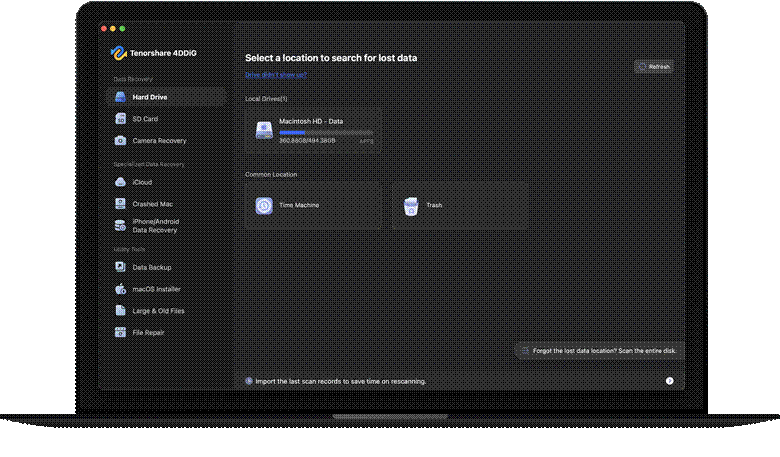
- Run a full scan and let the software take its time to search for lost or inaccessible files.
- Preview results, view file names, thumbnails, and folder structures where previews are available.
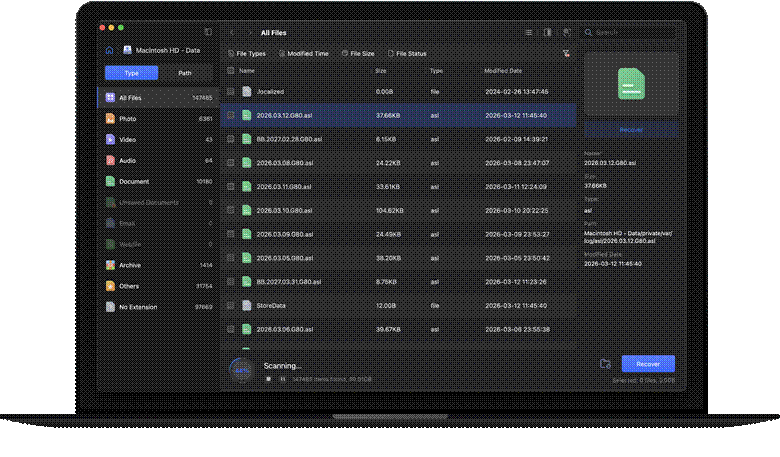
- Choose the specific files you need and restore them to a different drive, never back onto the original one.

- Open a few of the recovered files to make sure they are recovered intact and not corrupted.
This fifth step is more important than it might first seem, so it is worth repeating for emphasis. Always save recovered files to a different storage location than the drive from which they were recovered. Saving files to the same drive can overwrite other recoverable data stored nearby.
What to Do After the macOS 27 Update
Once the update has completed installing, take a few minutes to make sure that everything is really up to date before you can sit back and relax. A quick post-update checklist makes it easy to work through this and make sure nothing important is overlooked.
- Check your Desktop, Documents, Downloads, and Photos folders for anything that seems out of place.
- Check iCloud Drive and any external drives you’ve attached, as some files may take a little longer to appear.
- Test your critical apps one by one to make sure they still open and work as expected.
- If you have large libraries, give cloud services like iCloud, Dropbox, or Google Drive time to sync.
- Make sure printers, external monitors, and other attached accessories function as expected.
- Rather than deleting immediately, keep your Time Machine backup around for a few days for convenience.
That last point is a good one to remember, because sometimes hidden issues only reveal themselves after a Mac has been running normally for a while.
FAQs
1. Will updating to macOS 27 delete my files?
A normal update preserves your files, but interruptions, low storage, or disk errors can cause data loss. Before you update, back up to Time Machine. This one habit eliminates most of the risk in any major system upgrade.
2. What should I do if my files disappear after the macOS 27 update?
Immediately stop saving new files to the affected drive. First, check iCloud Drive, Trash, and Time Machine. If they are missing, launch 4DDiG Mac Data Recovery to find lost files. The sooner you do something, the better your chances, as data that hasn’t been overwritten is much easier to recover.
3. Can 4DDiG recover files lost after a macOS update?
Yes. 4DDiG searches for locally stored files that have been deleted or are no longer accessible after the update. Recovery depends on whether the data has been overwritten. Running a scan sooner rather than later gives you the best chance of a full recovery.
4. Can I downgrade from macOS 27 beta if I don’t like it?
Turning off beta updates does not roll back your system. To go back, you must back up, erase your Mac, reinstall macOS 26, then restore your files from backup. The entire process can take time, so consider that cost carefully before installing any beta version.
5. How much storage do I need before updating to macOS 27?
Apple recommends that you have at least 25GB of free space on your startup disk to complete the update successfully. Check System Settings > General > Storage. Beyond that minimum, more space reduces the chances of an installation getting stuck halfway.
Final Thoughts:
Upgrading to macOS 27 doesn’t have to feel like a gamble if you approach it with a bit of preparation. A solid backup, an understanding of the risks, and some patience go a long way toward ensuring the transition goes smoothly overall. And if files are lost along the way, even with your best precautions, reliable Mac hard drive recovery software gives you a real second chance at getting them back, rather than starting all over from scratch.