





















































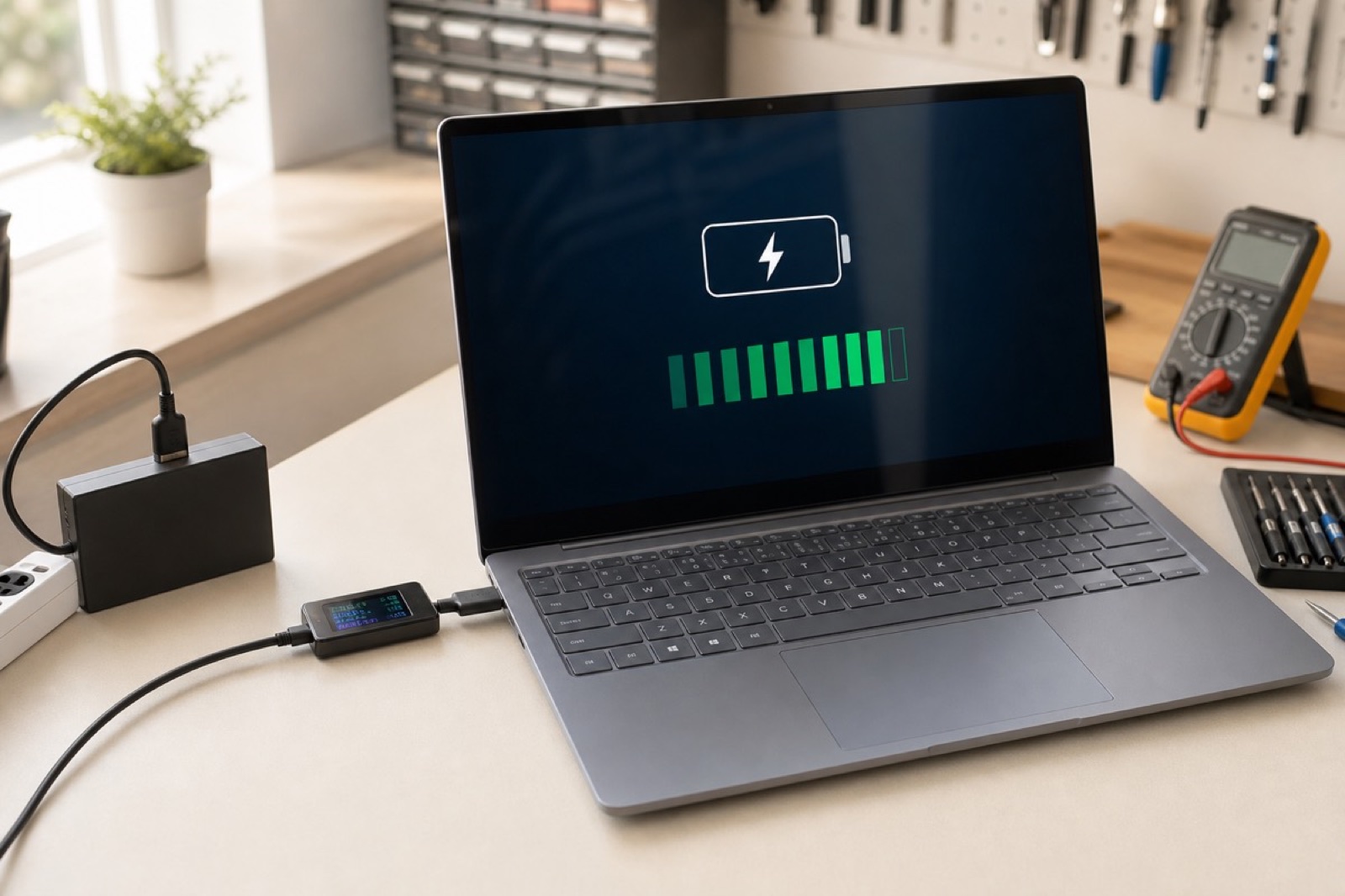
The charger is plugged in. The battery level refuses to rise. Before a working day at home, buying a replacement battery feels like a quick answer, but a charging complaint that has not been traced to a faulty part could leave you with the same problem and less money for the repair you need. Hold off on checkout.
Laptop batteries and laptop adapters solve different problems. Before ordering either, note what the computer says and what happens when it is connected to power. This guide explains how to organise those observations, where manufacturer checks help and when an unresolved fault belongs with a repairer.


Describe what “not charging” means on your laptop
Start with the exact message. Does the laptop recognise connected power while its charge level stays unchanged? Does it show no response to the charger? Or does it charge, then run down unusually quickly after you unplug it? Keep those descriptions separate. Short runtime and failure to accept charge are not the same complaint.
What changed recently? In a message to support, include the device model and adapter label alongside any change of charger, movement of the laptop or altered setting that preceded the problem, so the repairer has a sequence of events to investigate rather than a guess about a failed battery. Keep the wording plain.
Do not repeatedly drain the battery just to make the symptom more dramatic. Save your work and follow the manufacturer’s checks for that model. If the computer is not safe to use, stop here rather than continuing the experiment.
Check for a deliberate charging limit
Microsoft describes Smart charging as a way to help preserve battery health, and its Windows care guidance suggests roughly 20%–80% charge during use. It also explains that capacity falls as batteries age and documents powercfg /batteryreport for usage and capacity information. A charging limit and capacity loss therefore need different interpretations.
Check the manufacturer’s explanation. Before changing a charging setting on the device, particularly one managed by your employer or school, find out whether its purpose is to hold the battery below full charge and whether that matches the behaviour you are seeing. A limit is not automatically a fault.
Where it stops: a setting is not an explanation for every charging failure. An unrecognised adapter, damaged connection or device that will not power on needs a separate assessment. Do not let a familiar battery-health feature distract from a new physical symptom.
Establish whether the laptop recognises its charger
Dell’s adapter guidance lists the charger, battery, charging port, software and settings among possible causes of charging trouble. On supported Dell laptops, checking recognised adapter wattage in the BIOS and running the manufacturer’s diagnostics can help. Dell recommends genuine approved chargers; this is not approval of a third-party supplier.
Use the support instructions for your actual model. Save any recognition warning or diagnostic result verbatim. A report that the adapter is not recognised gives a repairer a different starting point from a report that the battery is recognised but has poor capacity.
Do not borrow a random charger. If the manufacturer’s procedure calls for a comparison with another laptop charger, use a known-compatible unit or ask a repairer to perform the comparison, rather than treating a neighbour’s adapter as a suitable test merely because it can be plugged in. Leave firmware updates until power is stable.
Why a plug that fits is not enough
Replacement Battery Mall lists an MSI charger ADP-330GB D at 20V, 16.5A and 330W. This is a specific seller catalogue example, not a recommendation for any laptop with a similar socket. The label gives a buyer details to check rather than permission to substitute it.
For laptop adapters, compare the exact device requirements, supported part reference and connector. Ask the seller to resolve any disagreement before ordering. A product photograph is useful for spotting an obvious mismatch, but it cannot confirm every electrical or mechanical requirement.
Check the mains lead too. When buying for use in the UK, ask whether the pictured adapter includes the correct lead for your setup and obtain a written answer if the listing leaves that unclear, instead of discovering the missing detail after the parcel arrives. Never force a connector. Avoid makeshift cables.
Look for evidence before choosing battery replacement
Consider a hypothetical laptop that charges normally and works reliably while connected, but no longer completes familiar work away from the socket. Battery capacity loss is worth investigating in that situation. A health report and the manufacturer’s diagnostics provide context; the observation alone does not prove that every other part is healthy.
For an HP laptop battery replacement enquiry, give the exact laptop model and applicable battery part reference, asking a qualified technician to obtain internal details if reaching the label would require work outside the manufacturer’s user instructions or you are unsure how to proceed. The logo is not enough. “HP laptop” leaves the model unresolved.
A new battery will not repair a damaged charging port. Equally, a new adapter does not restore lost battery capacity merely because it powers the computer. Ask what evidence supports the proposed part and what the repairer expects to happen after installation.
Read battery listings as specifications to verify
Another catalogue example is the Lenovo 01AV423/01AV424 battery, listed by Replacement Battery Mall at 11.4V and 24Wh. Those figures describe the listing; they do not establish compatibility with every Lenovo model. Check the exact device, connector, dimensions and part number before considering the purchase.
A Lenovo laptop battery listing needs to answer the same practical question as any other: does this part match this machine? When comparing Replacement Battery Mall batteries and adapters, retain the specification and the seller’s response with your order details. Do not infer independent certification, manufacturer affiliation or original-equipment approval from a product description.
For a fitted battery, price the complete job. Include diagnosis and installation where needed, and ask what will be checked afterwards. Spending less on an unverified part is poor value if the original charging fault remains unresolved.
Know when to stop testing and arrange repair
Visible swelling changes the decision immediately. Microsoft advises stopping use of a swollen battery and avoiding pressure or puncture. Contact qualified service; do not push the case back into shape or attempt to repair the cells. A battery report cannot clear a physically damaged device for continued use.
Pass an intermittent connection, damaged port or unresolved diagnostic warning to a repairer as well. Describe the symptom without trying to force it to recur. If moving the plug changes the behaviour, that observation is enough to report; repeatedly holding it at an angle is not a repair.
Ask the technician to distinguish the charging path from the battery condition and explain any remaining uncertainty. A responsible estimate can include further diagnosis. That is more useful than a confident battery recommendation based only on the words “not charging”.
Choose the next expense from the diagnosis
For a UK household, the practical decision is how to restore reliable use without buying a succession of guesses. Take an adapter diagnosis to a confirmed compatible charger purchase. Take supported evidence of battery wear to a compatible battery and fitting quote. Take a port or unresolved power fault to repair assessment.
Compare the complete bill. Before approving work, consider the condition and usefulness of the laptop alongside all known faults, and ask whether the proposed diagnostic charge is included in later repair work so that you can compare the quote with the alternatives on the same basis. Confirm the arrangement in writing.
Keep the decision conditional on the evidence. A seller having a battery in stock does not make it the right first expense, and a familiar brand name does not settle compatibility. Unanswered technical questions belong before checkout.
Check the result against the original complaint
After an approved repair or replacement, review the behaviour that started the investigation. Follow the manufacturer’s instructions, use the confirmed adapter and check the charging indication. Then try the ordinary task that was being interrupted, with your work saved.
Keep the diagnostic result, installed part details and repairer’s contact information together. If the fault returns, that record lets the next conversation begin with what has already been checked. Avoid replacing another component merely because the previous purchase did not work.
The useful outcome is a laptop that charges and supports its intended use reliably. Stop buying parts once that outcome is achieved; if it is not, return to the unresolved diagnosis with the evidence in hand.