




















































Backing up your computer is one of the most important steps you can take to protect your data. When you back up Windows 11 to an external drive, you create a secure copy of your system, applications, and personal files in case something goes wrong. Hardware failures, malware attacks, or accidental deletions can happen at any time, and without a backup, recovering data may be impossible.
Many users want a simple and reliable way to protect their system, but are unsure which method to use. While Windows 11 includes built-in backup tools, they may not always offer the easiest or most complete solution. Third-party tools such as 4DDiG Partition Manager can simplify the process and provide additional protection.


This guide explains step-by-step how to back up Windows 11 to an external drive using both built-in Windows features and professional backup software.
Let’s first explore why backing up your system is so important.
Why Back Up Windows 11 to an External Drive?
Backing up your system to an external drive is one of the most effective ways to protect your computer data. A Windows 11 backup external hard drive provides a safe location for storing important files and system images outside your computer. If anything happens to the internal drive, your data remains secure.
Protect Against Hardware Failure
Hard drives and SSDs can fail without warning. If your internal drive becomes damaged or corrupted, you could lose important documents, photos, and installed applications. When you back up your PC to an external drive, you ensure that a complete copy of your data is stored safely elsewhere.
Safeguard Against Malware and Ransomware
Cyber threats such as ransomware can lock or destroy your files. An external backup stored offline protects your data because malware cannot easily access disconnected drives.
Ease of System Recovery
Restoring a backed-up system is much faster than reinstalling Windows and configuring applications again. With a proper backup, you can restore everything in minutes.
Migration to a New Drive
Many users upgrade to larger SSDs or move their data to a new computer. A backup allows you to clone Windows 11 to an external drive or transfer your system easily without losing files or settings.
Now, here’s how you can back up Windows 11 effectively.
Method 1: Back up Windows 11 to an external drive using 4DDiG Partition Manager (Recommended)
Using professional backup software is one of the easiest and most reliable ways to protect your system. 4DDiG Partition Manager provides a streamlined interface that allows users to create a full system backup quickly and safely. Unlike some built-in tools, it ensures that all system files, hidden partitions, and installed programs are included in the backup.
Why Use 4DDiG Partition Manager?
There are several reasons why many users prefer using dedicated backup software:
- It creates a complete system backup, including Windows, installed programs, settings, and files.
- It supports multiple storage devices such as HDDs, SSDs, and external drives.
- The interface provides simple one-click backup and restore options.
- It prevents common errors that may occur during manual backups.
- It ensures that important hidden system files are not missed.
Because of these features, it is considered one of the most practical solutions for users who want a reliable Windows 11 backup external hard drive.
Step-by-Step Guide
Follow these steps to back up your system using the software:
- Download and install 4DDiG Partition Manager on your computer.
- Launch the program and choose the “Backup” feature, then select “System Backup”.
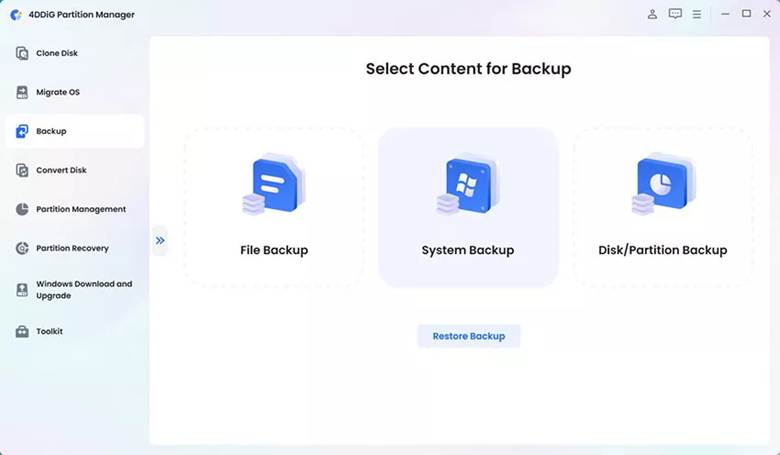
- Select the Windows 11 system drive as the source disk.
- Connect your external drive and choose it as the destination location.
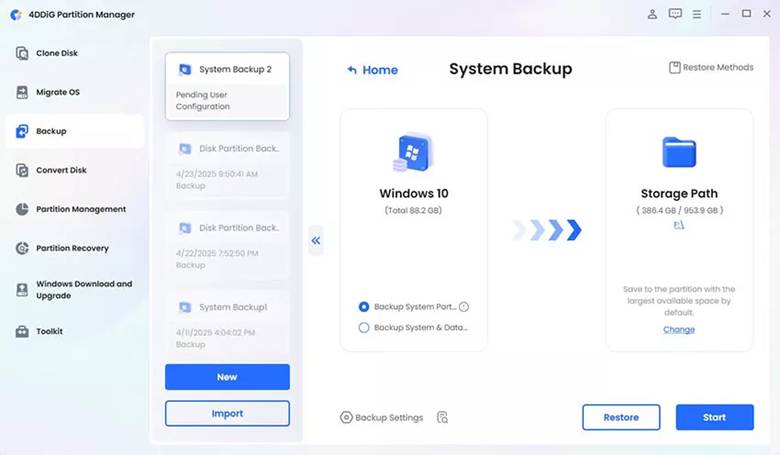
- Click “Start” to begin the process.
- Wait for the backup to complete and safely eject the external drive.
Once the process finishes, you will have a complete system snapshot stored on the external device. If your system fails in the future, you can restore the backup and recover Windows exactly as it was before.
The main advantage of this method is that it reduces manual errors while providing a fast and reliable backup process.
Method 2: Use Windows 11 Built-In Backup Tools
Windows 11 includes built-in tools that allow users to create backups without installing additional software. While these options are convenient and free, they may not offer the same level of control as dedicated backup solutions.
Option 1: File History
File History is designed to automatically back up important files such as documents, pictures, and videos.
- Connect your external drive to the computer.
- Open “Settings” and go to “Update & Security”.
- Click “Backup” and choose “Add a drive”.
- Select the connected external drive.
- Turn on “Automatically back up my files”.
- Customize which folders to back up and how often backups occur.
This option helps protect personal files, but does not create a full system backup.
Option 2: Backup and Restore (Windows 7)
Windows also includes an older but still functional tool called Backup and Restore.
- Open “Control Panel” and select “Backup and Restore (Windows 7)”.
- Click “Set up backup” and choose your external drive as the destination.
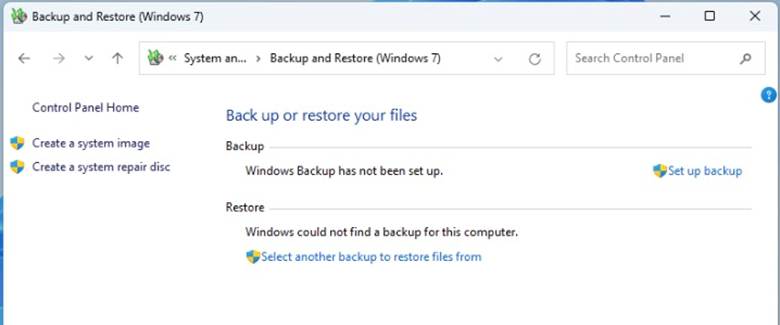
- Select “Let Windows choose” or manually choose files to include.
- Start the backup process.
This method allows you to create system images, but it may not support advanced features such as full disk cloning.
Pros:
- Free and built into Windows.
- Easy to access without additional downloads.
Cons:
- Limited flexibility.
- May not fully support system partition cloning or advanced backup options.
For a more complete backup, including system partitions, professional tools are recommended.
Tips for Effective Windows 11 Backups
Creating a backup is only the first step. To ensure your data remains safe, it is important to follow a few best practices.
- First, always keep your external drive connected during scheduled backups. If the drive is not connected, automatic backups will fail. Second, perform backups regularly so that your files remain up to date. Weekly or monthly backups are common, depending on how frequently you use your computer.
- It is also a good idea to verify backups occasionally. You can do this by browsing the backup files or testing restore features to confirm the backup works correctly.
- Another helpful practice is storing multiple backups in different locations. For example, you might keep one copy on an external drive and another on cloud storage.
- Finally, using reliable free backup software that Windows 11 users trust, such as 4DDiG Partition Manager, can simplify the process and reduce the risk of missing important data.
Frequently Asked Questions
Can I back up Windows 11 for free?
Yes, Windows 11 includes built-in tools such as File History and Backup and Restore that allow users to create backups without paying for software. However, these tools may have limited features compared with professional solutions. Some users prefer using tools like 4DDiG Partition Manager because they provide easier system backup and recovery options.
Should I back up system files or just documents?
It is recommended to back up both. Backing up only documents protects personal files, but a full system backup allows you to restore Windows, applications, and settings if your computer fails.
How often should I back up Windows 11?
The frequency depends on how often you update or create files. For most users, performing a backup once a week is sufficient. However, people who work with important or frequently changing data may want to back up their system daily.
Conclusion
Creating a backup is essential for protecting your computer from unexpected problems such as hardware failures, malware, or accidental data loss. Learning how to back up Windows 11 to an external drive ensures that your files, applications, and system settings remain safe even if your main drive stops working.
You can use Windows built-in tools like File History and Backup and Restore for basic protection. However, professional software such as 4DDiG Partition Manager provides a faster and more reliable way to create complete system backups and restore them when needed. By following the steps in this guide, you can easily back up Windows 11 to an external drive and keep your system fully protected.