


















![5 Best CFD Brokers for Beginners [UK, 2026]](https://todaynews.co.uk/wp-content/uploads/2026/03/Invest-360x180.jpg)

































Many Mac users eventually run into a frustrating issue: an application that refuses to uninstall. Normally, removing an app is simple: just drag it to the Trash. However, sometimes the app won’t move, shows an error message, or even reappears after restarting your computer.
Common symptoms include dragging the app to Trash without success, receiving an “app cannot be deleted” warning, or seeing the program return after deletion. These issues often happen because the app is still running, system permissions are blocking the action, or hidden files remain on the system. If you’re facing this problem, don’t worry.


This guide explains how to delete apps on Mac that won’t delete using several effective methods, including manual fixes and the fastest solution using Tenorshare Cleamio Mac cleanup software.
Why Some Mac Apps Won’t Delete?
Before attempting to remove stubborn apps, it helps to understand why they sometimes refuse to uninstall. Several technical factors can prevent an app from being deleted normally.
Apps Are Running in the Background
Some applications continue running in the background even after you close their window. macOS will prevent deletion while the program is still active.
Insufficient Permissions
If your user account does not have administrative permissions, macOS may block the deletion of certain apps. System-level software especially requires administrator access.
Apps Installed via App Store or Third-Party Software
Some apps include built-in protection to prevent accidental removal. This is common with security software, system tools, or apps installed through specialized installers.
Hidden System Files or Preferences
Even after deleting the main application, leftover files stored in system folders can remain. These hidden files sometimes interfere with future deletion attempts.
Now that you understand why apps may resist deletion, let’s explore how to delete apps on Mac that won’t delete using several practical solutions.
Method 1: Use Tenorshare Cleamio to Delete Stubborn Mac Apps (Recommended)
For users who want the simplest and safest solution, using dedicated cleanup software is often the best option. Tenorshare Cleamio Mac cleanup software is designed to help users quickly remove apps that won’t uninstall and clear leftover files automatically.
Why Cleamio Works Best?
This tool offers several advantages compared to manual methods:
- One-click deletion of stubborn applications
- Automatic removal of leftover system files, caches, and preferences
- Beginner-friendly interface
- Protects macOS stability while freeing up storage
- Supports batch removal of multiple apps
Because Cleamio removes hidden components associated with applications, it can successfully uninstall stubborn Mac apps that traditional methods fail to remove.
How to Delete Apps Using Tenorshare Cleamio
Follow these steps:
- Download and install Tenorshare Cleamio on your Mac.
- Launch the program and open the “App Management” feature.
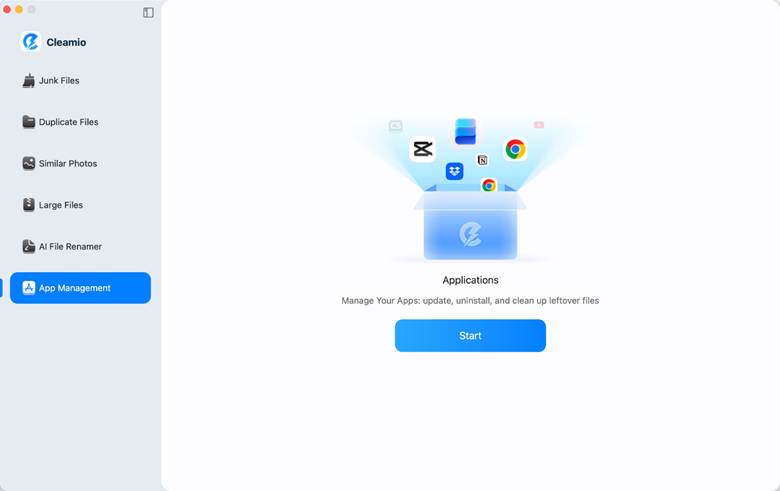
- Allow the software to scan your Mac for installed applications.
- Select the apps you want to remove in the “App Uninstallation” section.
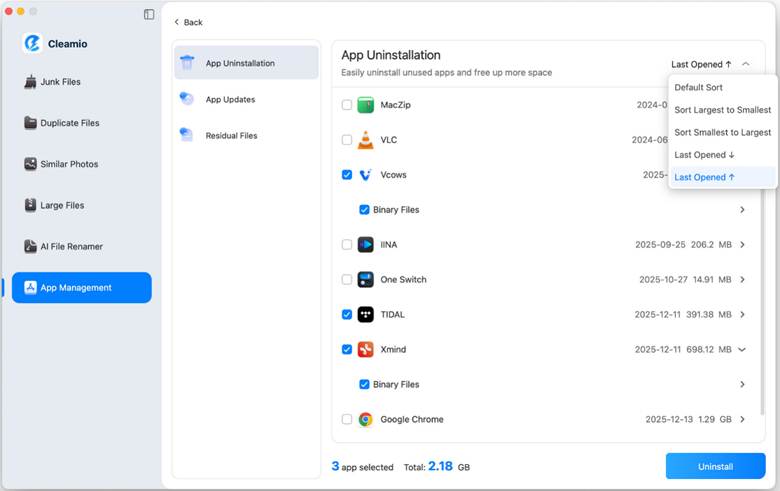
- Click “Uninstall” to delete the application and its related files.
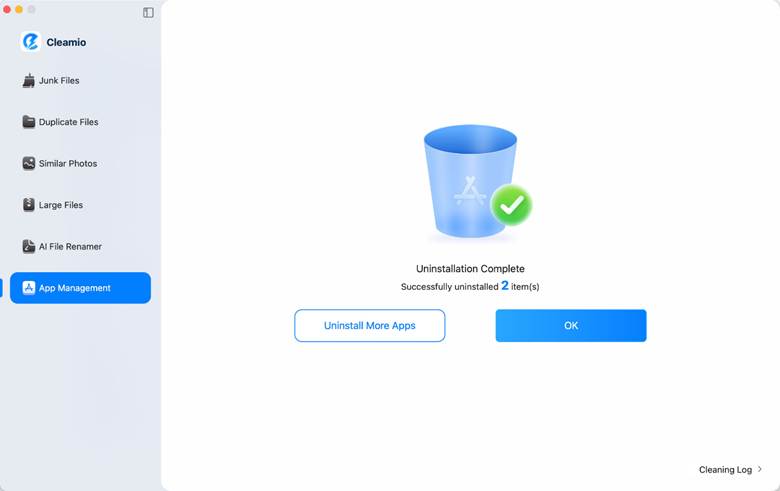
Key Benefits
Cleamio removes both the main application and hidden support files at the same time. This ensures that no leftover data remains, which can help clear Mac storage and prevent future issues with incomplete uninstallations.
Method 2: Force Quit and Delete the App
Sometimes an application cannot be deleted simply because it is still running. In these situations, you can force the app to quit before attempting deletion.
- Open Activity Monitor from “Applications” > “Utilities”.
- Look for the application or related processes in the list.
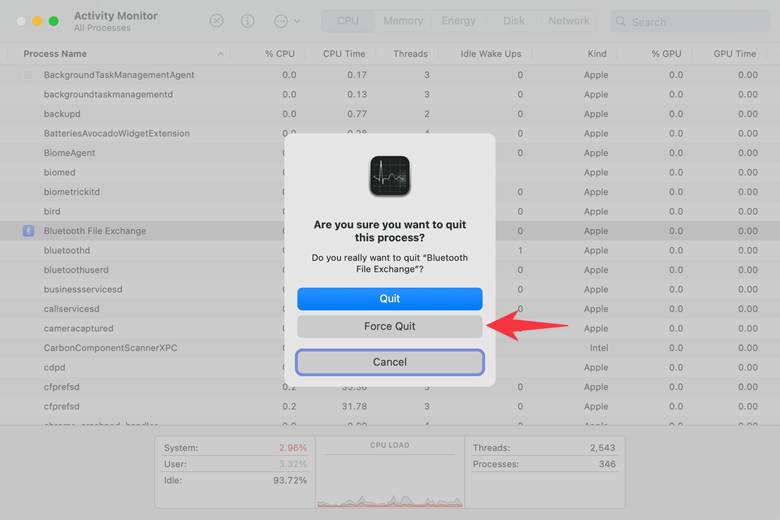
- Select the process and click the “Stop” button, and choose “Force Quit”.
- Once the app stops running, drag it to the “Trash”.
- Empty the Trash to remove the application permanently.
This method helps force delete apps that Mac users cannot remove because they are still active in the background.
Helpful Tip
Make sure there are no additional processes linked to the application. Some apps run multiple services that must also be closed before deletion works properly.
Method 3: Delete Apps via Finder Using Administrator Access
Another effective solution involves adjusting file permissions in Finder. Sometimes macOS blocks deletion because your user account does not have full access to the application file.
- Open Finder and go to the “Applications” folder.
- Locate the app you want to remove.
- Right-click the app and select “Get Info”.
- Scroll to the “Sharing & Permissions” section.
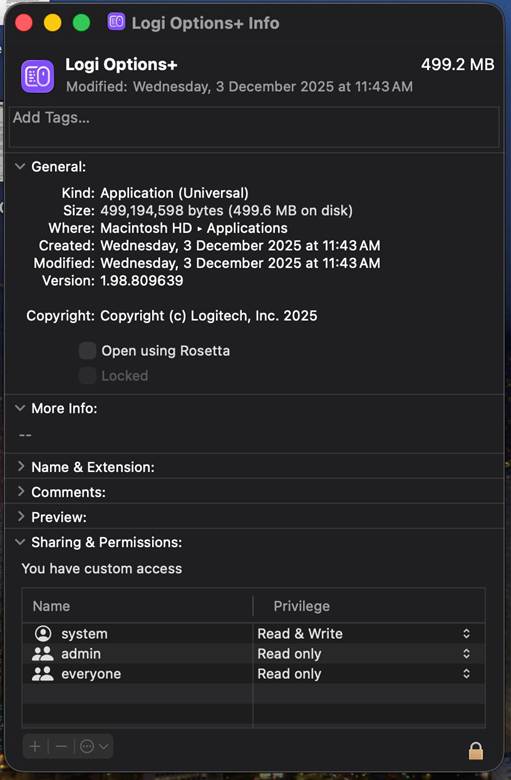
- Ensure your account has “Read & Write” permissions.
- Drag the application to the Trash and empty it.
This process often helps remove apps that won’t uninstall because of permission restrictions.
Additional Note
After deleting the application, restarting your Mac may help clear any background services still associated with the app.
Method 4: Remove Apps That Won’t Delete Using Terminal
Advanced users can also remove stubborn applications using Terminal commands. This method allows you to directly delete application files from the system.
- Open Terminal from “Applications” > “Utilities”.
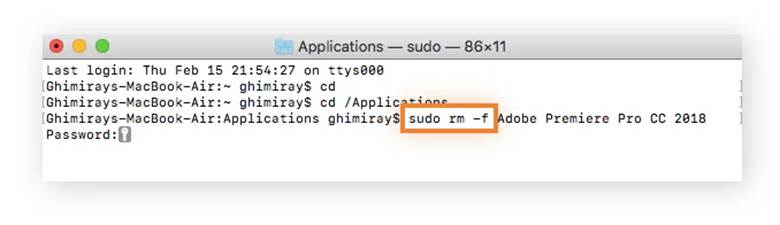
- Type the following command: “sudo rm -rf /Applications/AppName.app. Replace AppName with the exact name of the application. Press “Enter” and input your administrator password.
- Check the Applications folder to confirm the app has been removed.
This command can force delete apps that Mac users cannot remove using standard methods.
Important Warning
Be extremely careful when using the rm -rf command. Deleting the wrong file can damage important system components. If you prefer a safer option without command-line risks, tools like Tenorshare Cleamio Mac cleanup provide a simpler solution.
Method 5: Clear Leftover Files Manually
Sometimes the main application is removed, but leftover files remain in hidden system folders. These files can consume storage space or cause reinstall issues.
- Open Finder and click “Go” in the menu bar, and select “Go to Folder”.
- Check the following locations:
- ~/Library/Application Support
- ~/Library/Preferences
- ~/Library/Caches
- Look for folders associated with the application.
- Delete those folders and restart your Mac.
Removing leftover files helps clear Mac storage and ensures that the app is completely removed from the system.
Tips to Prevent Apps from Getting Stuck
Preventing stubborn apps is easier than fixing them later. Following a few simple habits can reduce the chance of uninstall problems. Here are some helpful tips:
- Always quit applications completely before deleting them
- Avoid removing system-critical macOS apps
- Use app management software for safer uninstall processes
- Keep macOS updated to maintain system stability
- Regularly clean caches and temporary files to free up storage
These practices help maintain a smooth system and reduce the need to uninstall stubborn Mac apps later.
Frequently Asked Questions
Why won’t some Mac apps delete normally?
Some apps remain active in the background or require administrator permissions. In other cases, hidden files associated with the application prevent full deletion.
Can I safely delete pre-installed Mac apps?
Certain built-in macOS apps are protected because they are essential for system functions. Removing them may cause system instability, so it is generally not recommended.
Is Tenorshare Cleamio safe for beginners?
Yes. Tenorshare Cleamio Mac cleanup software is designed with a simple interface that allows beginners to safely remove apps, clean system junk files, and free up storage space without technical knowledge.
What’s the easiest way to remove stubborn apps?
The easiest solution is to use dedicated uninstall software that removes both the app and its hidden components. This approach prevents leftover files and simplifies the removal process.
Conclusion
Stubborn applications can be frustrating, especially when they refuse to uninstall using normal methods. Fortunately, there are several ways to solve this problem. In this guide, we explored how to delete apps on Mac that won’t delete using five effective methods. These include force-quitting running apps, adjusting permissions, using Terminal commands, clearing leftover files manually, and using dedicated cleanup tools.
For users looking for the fastest and safest solution, Tenorshare Cleamio Mac cleanup software provides a convenient way to remove stubborn applications while also helping clear Mac storage. With the right approach, you can easily keep your Mac organized and running smoothly.
Meta Description:
Learn how to delete apps on Mac that won’t delete using simple methods. Force remove stubborn apps, clear leftover files, and free up Mac storage safely.
















![5 Best CFD Brokers for Beginners [UK, 2026]](https://todaynews.co.uk/wp-content/uploads/2026/03/Invest-120x86.jpg)