























![5 Best CFD Brokers for Beginners [UK, 2026]](https://todaynews.co.uk/wp-content/uploads/2026/03/Invest-360x180.jpg)




























You might imagine that it is a simple process to uninstall an application on your Mac and simply drag the application into the trash. If you’ve done this but later noticed your Mac running slower or storage filling up, you’ve discovered the hidden truth: dragging an app to the Trash does not remove all its files. When you uninstall apps on Mac by dragging them to the Trash, you only delete the main application. Move the application to the trash on your Mac and uninstall it, it will only delete the main application. First, this guide will demonstrate how to uninstall apps on Mac manually and leave no traces of files. Lastly, you will get the best advice on how to remove the apps on your Mac and leave your computer Ivy clean.
Part 1: The Standard (But Incomplete) Way to Remove an App
This is because many users of Mac believe that the application can be removed by just dragging it into the trash. Of course, the primary application will also be removed, yet the hidden files will still be in place and they will still consume some space hence interfering with the operation of the Mac.


Step 1: Quit the Application
Be sure to terminate the app before uninstalling it on Mac. With the app open:
- Right-click the app icon in the dock and select “Finish” or
- Press Command + Q with the app active.
This will prevent the app from running during deletion.
Step 2: Move to Trash – This is What You Already Know
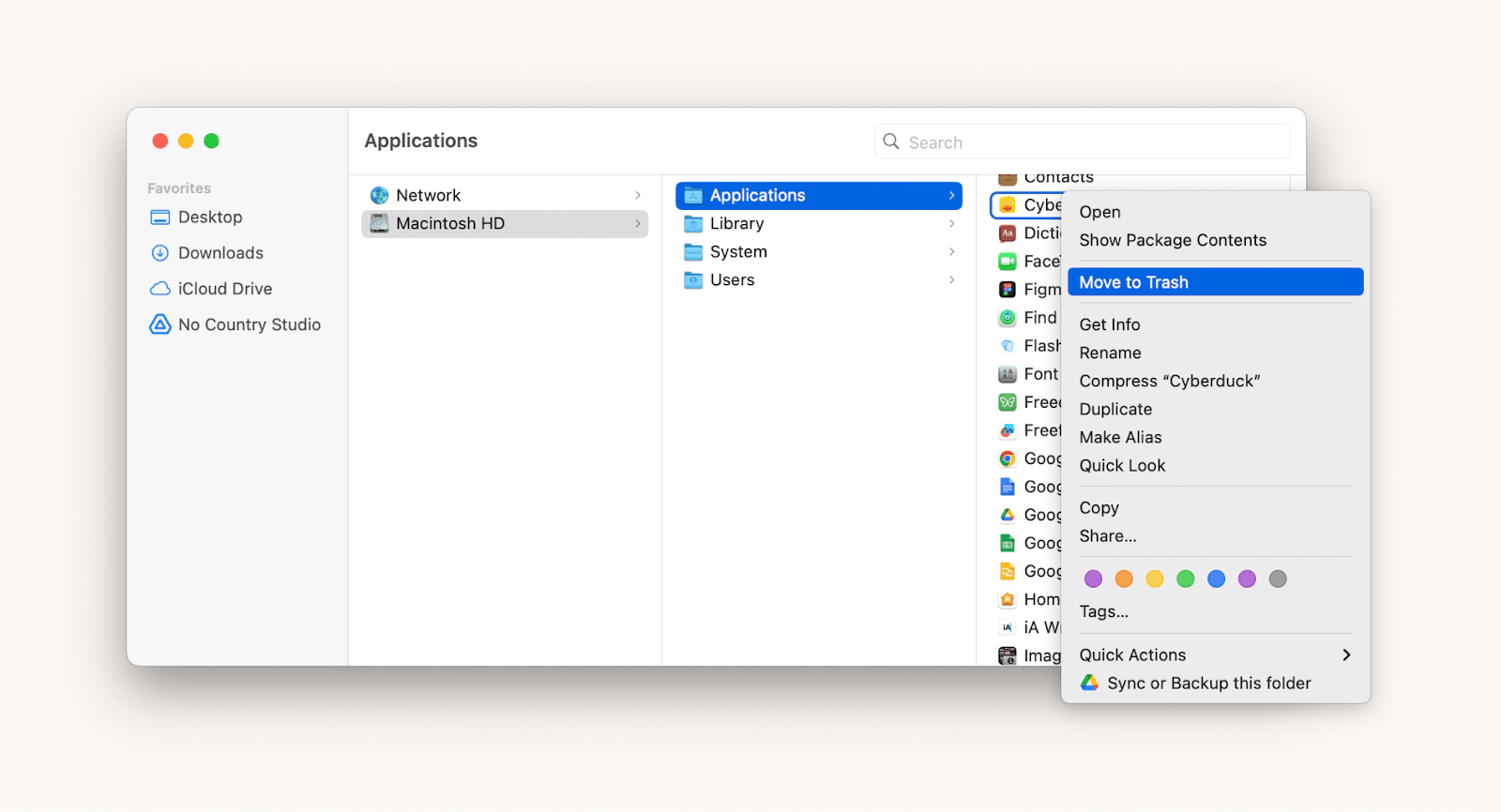
- Open the “Application” folder in Finder
- Find the app you want to delete
- Drag to Trash or right click and select “Go to Trash”
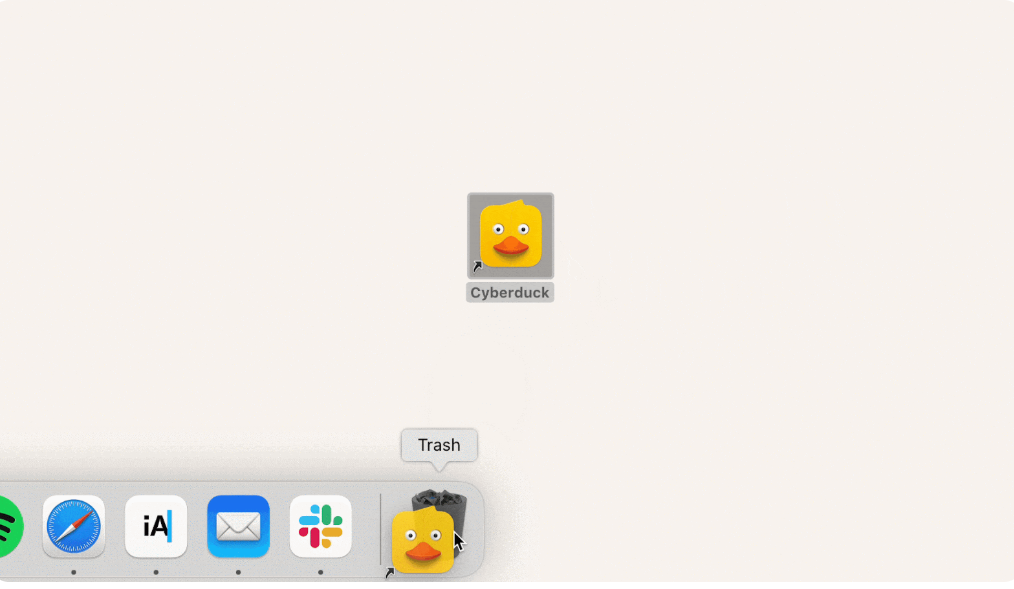
Warning: This procedure removes only the main app file. Since hidden files remain on your Mac, storage problems and operation delays may continue after you Uninstall Apps on Mac.
Part 2: The Manual “Complete Uninstall” Method
To make your Mac completely clean, you need to manually delete the remaining files. It takes time, but it ensures that no trace of the app remains.
Step 1: Open Finder
Click on the desktop or select the Finder icon from the Dock.
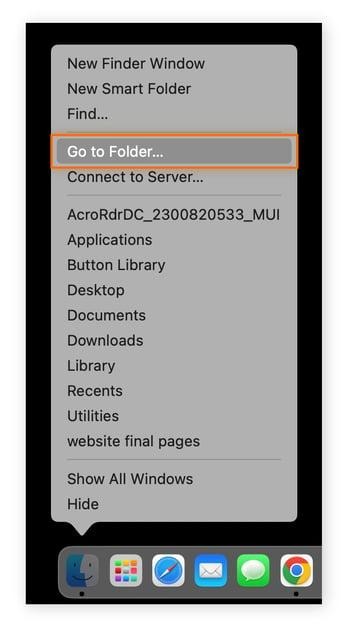
Step 2: Open Your User Library (Key Step)
- In the menu bar, click Go.
- Hold down the Option (Alt) key.
- The Library folder will appear in the list.
- Click Library to open it.
This folder stores most leftover app files that are not deleted automatically.

Step 3: Search for App Leftovers
In the ~/Library folder, use the search bar in the top-right corner. Type the exact name of the app you already moved to the Trash (for example, Spotify).
Step 4: Review and Delete Carefully
Check the search results inside these key folders:
- ~/Library/Application Support/
- ~/Library/Caches/
- ~/Library/Preferences/ (files ending with. plist)
Move any files or folders that clearly belong to the uninstalled app to the Trash.
⚠️ Important: Only delete files that are clearly named after the app you removed. Do not delete random system files.
Step 5: Empty the Trash
Right-click the Trash icon and select Empty Trash to permanently remove the files. This method is effective, but it may be troublesome and risky, especially for beginners. So many users choose a safer and faster way.
Part 3: The Modern Solution – Automatic, Complete Uninstalls
Manually uninstalling apps on Mac is time-consuming and complex, especially when searching for hidden residual files. The modern solution of how to uninstall an app on mac is to use a dedicated uninstall apps on Mac tool. Automatically locate all related files and ensure the process is fast, safe, and thorough.
The Easy Button: Using a Dedicated Uninstaller Tool
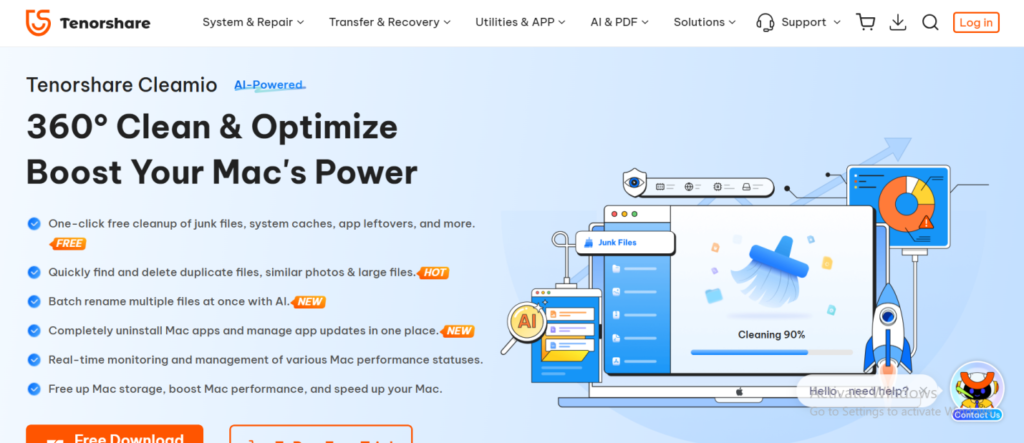
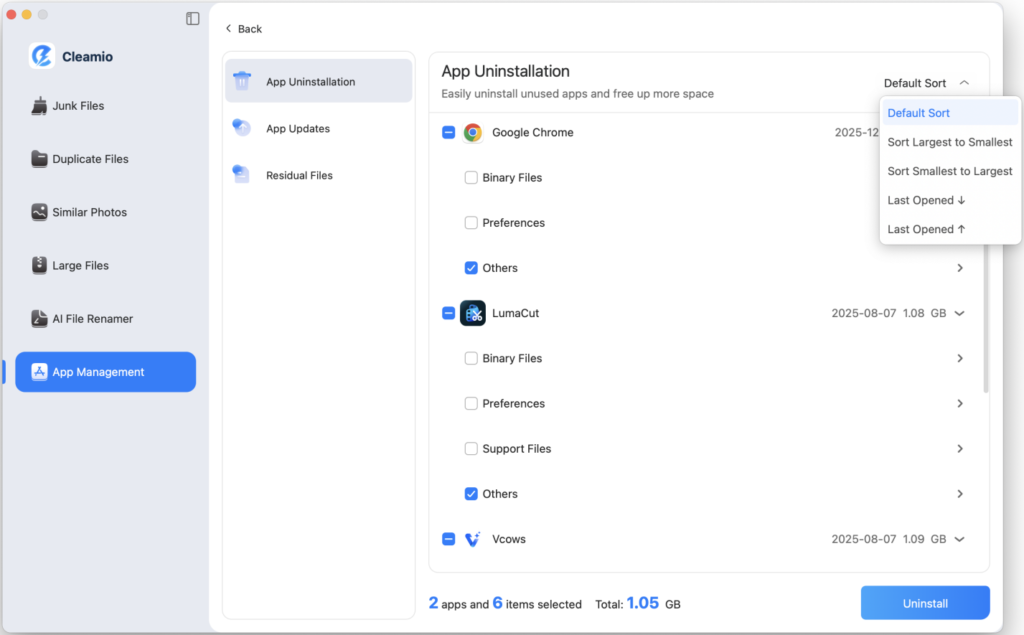
Manually uninstall apps on Mac takes a lot of time and attention, such as tracking hidden residual files in library folders. A dedicated uninstaller tool like Tenorshare Cleamio makes this process easy and efficient. Automatically detect the main app and related files, so you can safely delete everything with a few clicks. Cleamio provides a fast, thorough, and stress-free way to keep your Mac clean, without having to worry about file spills and system data errors.
Key Features of Cleamio:
- Thorough cleanup: detect and delete all remaining files in the library or system folder, leaving nothing behind.
- Secure deletion: View all files before deletion and prevent erroneous removal of critical system data.
- Fast processing: Uninstall apps and related files in seconds for significant time savings.
- Uninstall bulk: Multiple apps can be selected and deleted at once.
- User-friendly interface: simple and intuitive operability. Simple design, easy to use from beginner to advanced.
Want to try the effortless way? Download Tenorshare Cleamio to scan your Mac and see all the leftover files you can clean up in one click.
Frequently Asked Questions
Q: How do I uninstall an app on my Mac if it has no uninstaller?
Most Mac apps don’t have built-in uninstallers. To delete, exit the app and drag it to the trash. Remove the remaining files manually from the library folder or use tools like Cleamio.
Q: I dragged an app to the Trash, but it’s still in my Applications folder. What happened?
If left in the application folder, you may not have emptied the trash box. The app remains on your Mac until you empty the trash. Be sure to empty the trash can to completely remove the application and ensure free space.
Q: Is it safe to delete files from the ~/Library folder?
Please delete only files and folders that clearly belong to the uninstall apps on Mac. Deleting random system or app files can cause problems. Using tools like Cleamio is the easiest way to ensure safety and accuracy.
Conclusion: Which Method is Right For You?
Uninstall apps on Mac is not a straightforward procedure of dropping the applications into the garbage bin. The other technique of deleting the files that have not been selected manually in the library folder is also effective but time consuming and cautious hence may be confusing to new users. To most users, it is better to use special tools such as Tenorshare Cleamio because it is faster, safer and more comprehensive. With some clicks of the mouse Cleamio removes the main application and all the concealed files to ensure a clean and tidy Mac. Manual or stress-free cleanup, it is always good to know how to take down your apps in the Mac system fully to maintain your system well-organized and efficient.